

Documentation Index
Fetch the complete documentation index at: https://docs.atthene.com/llms.txt
Use this file to discover all available pages before exploring further.
Variables System
The AMAS Variables System provides a powerful way to define, populate, and use dynamic values throughout your agent configurations. Variables can be populated from user inputs, agent structured outputs, or defined with static defaults.Overview
Variables enable:- Dynamic prompts - Inject context into agent system prompts using
{{ variables.name }} - Input overrides - User-provided inputs override variable defaults at runtime
- Automatic population - Extract data from agent structured outputs via
variable_assignments - Persistence - Variables persist across executions when using checkpoints
Defining Variables
Variables are defined in thevariables section of your configuration:
Variable Properties
| Property | Type | Default | Required | Description |
|---|---|---|---|---|
type | string | — | Yes | Data type using BAML type notation: str, int, float, bool, list[str], list[int], dict[str, int], str | None, etc. |
default | any | null | No | Default value if not provided. Supports template syntax like {{ variables.key }}. |
description | string | null | No | Human-readable description (shown in UI and playground). |
required | boolean | true | No | If true, variable must be provided or have a default value. If false, a default must be set — omitting both causes a validation error. |
require_every_execution | boolean | false | No | If true, variable must be provided on every execution request. Checkpoint values are ignored. |
mode | string | "replace" | No | Assignment mode: "replace" (overwrite previous value) or "concat" (append to existing value). |
separator | string | " " | No | Separator string used when mode="concat" to join existing and new values. |
Variable Lifecycle
Understanding when variables are required is crucial for proper configuration:Session-Level Variables
These are required on the first execution only and persist via checkpoints:inputs: {"current_user_id": "user_123"}, this value is stored in the variable and persists across subsequent executions.
- Set once at session start
- Persist across all subsequent executions in the session
- Ideal for: user identity, session context, preferences
Request-Level Variables
These must be provided on every execution:- Fresh value required for each request
- Checkpoint values are ignored for these variables
- Ideal for: user messages, request-specific data
Providing Inputs
Inputs are values provided at runtime that override variable defaults. The input key must match the variable name.Via REST API
Send inputs in the request body:inputs object keys correspond directly to variable names defined in your configuration.
Via Playground UI
Use the Variable Inputs panel to provide values:- Click the input field next to each variable
- Enter the value
- Variables with
required: truemust be filled before execution - Variables with defaults show the default value as placeholder
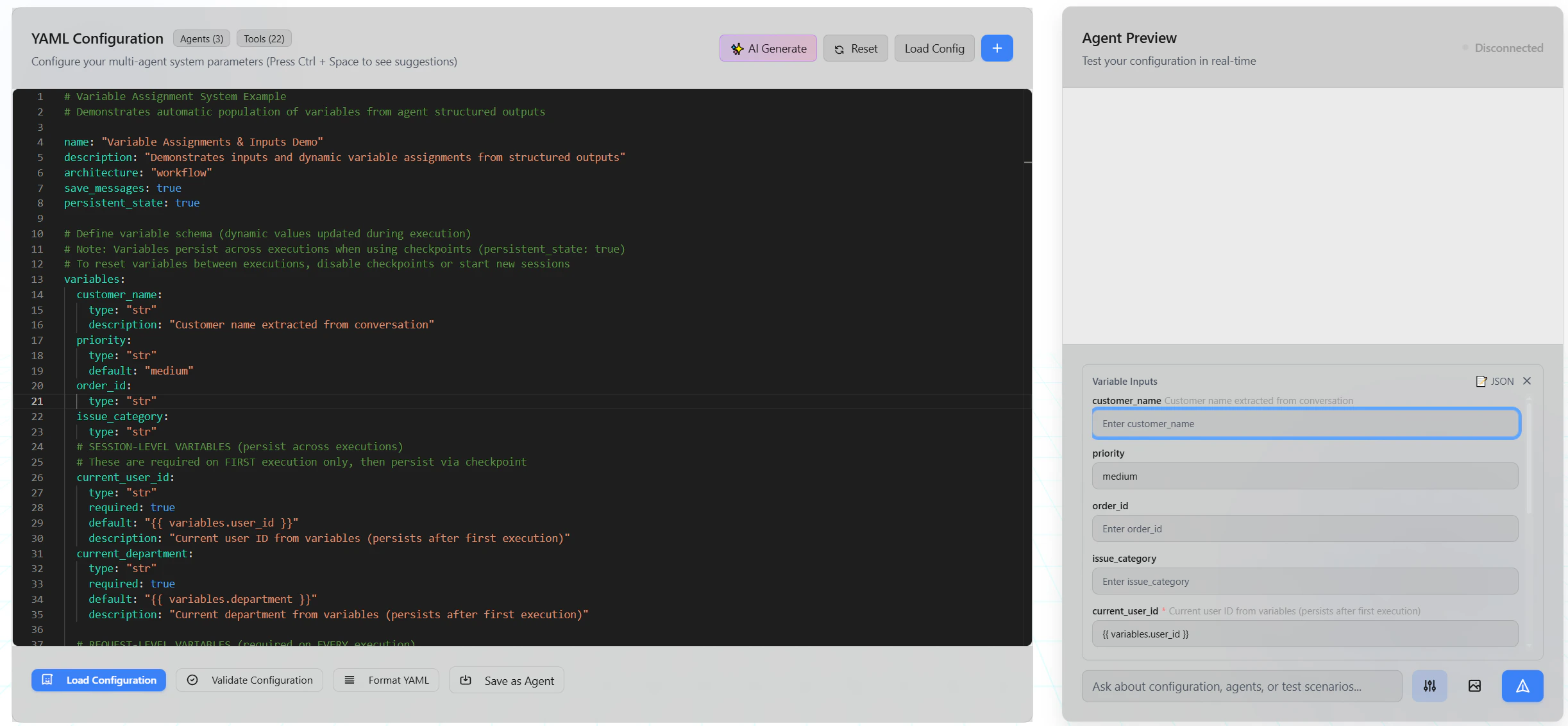
The Variable Inputs panel shows all defined variables with their descriptions and current values.
Using Variables in Prompts
Reference variables in agent prompts using Jinja2 syntax:Template Syntax
Variables are accessed insystem_prompt using {{ variables.name }} syntax. The substitution engine also supports other template variables — see Prompt Configuration for the full list.
| Syntax | Description | Example |
|---|---|---|
{{ variables.name }} | Access a variable value | {{ variables.customer_name }} |
{{ user_input }} | Current user message text | {{ user_input }} |
{{ agent_name.output.field }} | Structured output field from another agent | {{ analyzer.output.priority }} |
{{ agent_name.output }} | Last text output from another agent | {{ researcher.output }} |
The substitution engine uses regex-based
{{ ... }} matching, not Jinja2 filters. Expressions like {{ variables.name | default('x') }} are not supported. Unknown variables resolve to an empty string.Reserved Variable Names
The following names cannot be used for custom variables:user_input, history, full_history, prompts, variables. Using a reserved name causes a validation error.
Variable Assignments
The most powerful feature: automatically populate variables from agent structured outputs.How It Works
- Agent generates structured output using
structured_outputconfiguration - Variable assignments map output fields to variables
- Downstream agents receive populated variables in their prompts
Configuration
Assignment Patterns
Variable assignments support three patterns:1. Structured output field (most common)
variable_name— The variable to populate (must be defined invariables)agent_name— The agent that produces the outputoutput— Fixed keywordfield_name— The field from the structured output schema
2. Non-structured agent output
3. Static value assignment
Nested Fields
For nested structured output data, use dot-separated paths:Type Coercion
During variable assignment, values are automatically coerced to match thetype specified in your variable definition. This means you can assign strings from user input or non-structured agent output, and the system will intelligently convert them:
- Numbers: Strings like
"42"become42(int),"3.14"becomes3.14(float) - Booleans: Strings like
"true"or"1"becometrue;"false"or"0"becomefalse - Collections: Valid JSON strings are parsed into
dictorlisttypes (e.g.,list[str])
concat mode.
Concat Mode Example
Build a progressive story where each agent adds a sentence:- Initial:
"Once upon a time" - After run 1:
"Once upon a time there was a brave knight." - After run 2:
"Once upon a time there was a brave knight. He embarked on a quest." - After run 3:
"Once upon a time there was a brave knight. He embarked on a quest. The journey was perilous."
Best Practices
1. Use Descriptive Names
2. Provide Helpful Descriptions
Descriptions appear in the UI and help users understand what to provide:3. Set Sensible Defaults
4. Separate Session vs Request Variables
Clearly distinguish between persistent and per-request variables:5. Validate Required Variables
Userequired: true for critical session variables:
Troubleshooting
Variable Not Populated
Symptom: Variable shows empty or default value in prompt Causes:- Agent didn’t produce structured output
- Assignment path is incorrect
- Field name doesn’t match schema
Required Variable Error
Symptom: “Required variable ‘X’ not provided” Cause: Variable withrequired: true wasn’t provided in inputs
Solution: Provide the variable in your API request or UI:
Variables Not Persisting
Symptom: Variables reset between executions Cause:persistent_state not enabled or using new session
Solution: Enable checkpoints in configuration:
API Reference
Variable Definition Schema
Variable Assignment Schema
Execution Request
Supported Types
All types supported by the BAML type parser:| Type | Description | Example |
|---|---|---|
str | Text string | "hello" |
int | Integer | 42 |
float | Decimal number | 3.14 |
bool | Boolean | true |
list[str] | List of strings | ["a", "b"] |
list[int] | List of integers | [1, 2, 3] |
dict[str, int] | Dictionary | {"a": 1} |
str | None | Nullable string | "hello" or null |
Optional[str] | Nullable string (alternate syntax) | "hello" or null |
Any | Any type | — |