

The Agent Overview page is your control center for all saved agents. Here you can view agent performance, manage versions, and configure deployments.Documentation Index
Fetch the complete documentation index at: https://docs.atthene.com/llms.txt
Use this file to discover all available pages before exploring further.
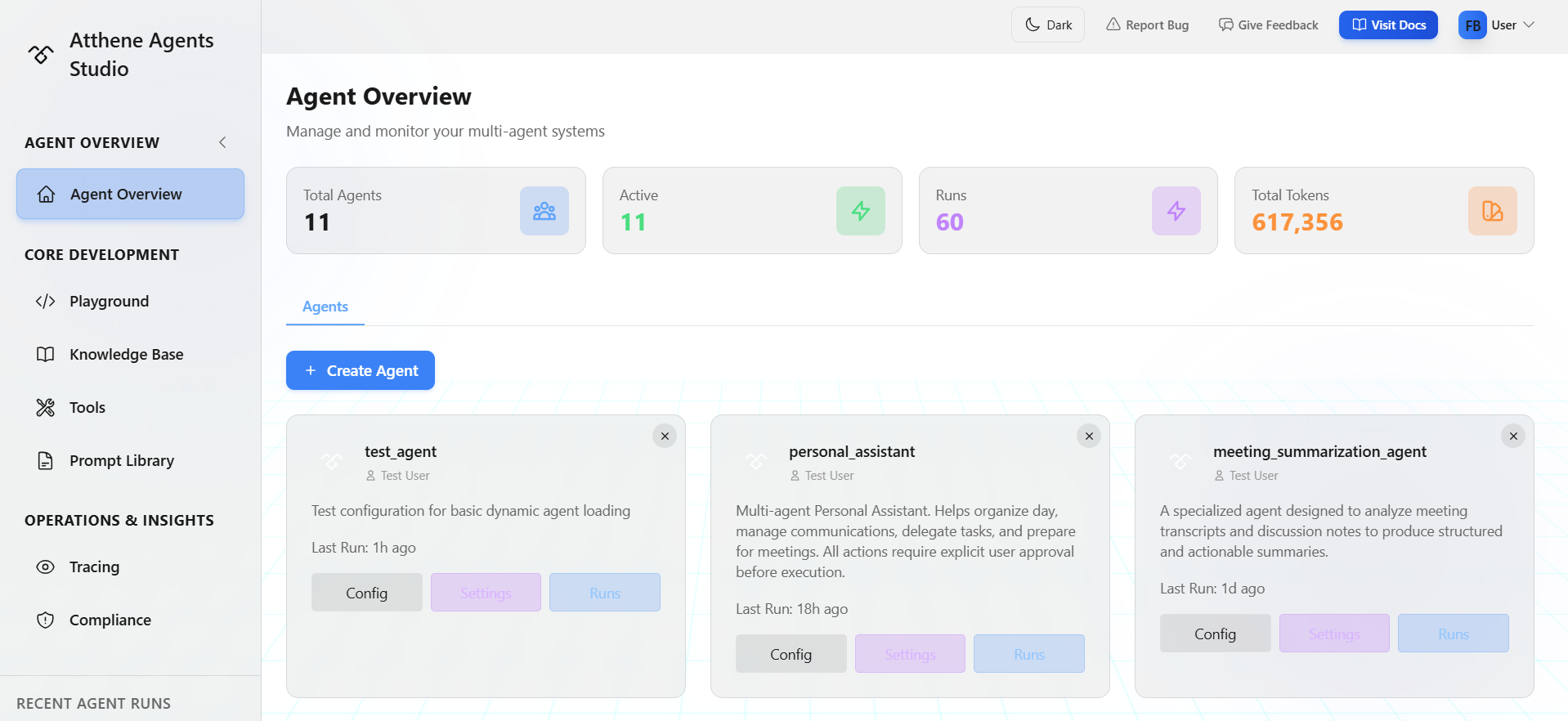
Dashboard Overview
At the top, you’ll see quick stats:- Total Agents: Number of agents you’ve created
- Active: Agents currently deployed
- Runs: Total execution count
- Total Tokens: Cumulative token usage
Agent List
Each agent card shows:- Agent name and description
- Current version number
- Creation date
- Quick action buttons (Config, Settings, Delete)
Quick Actions
Config: Opens the agent’s current version in the Playground where you can edit the YAML configuration Settings: Access version management, access control, statistics, and general settings Delete: Remove the agent and all its versions permanentlyManaging Agent Versions
Understanding Versions
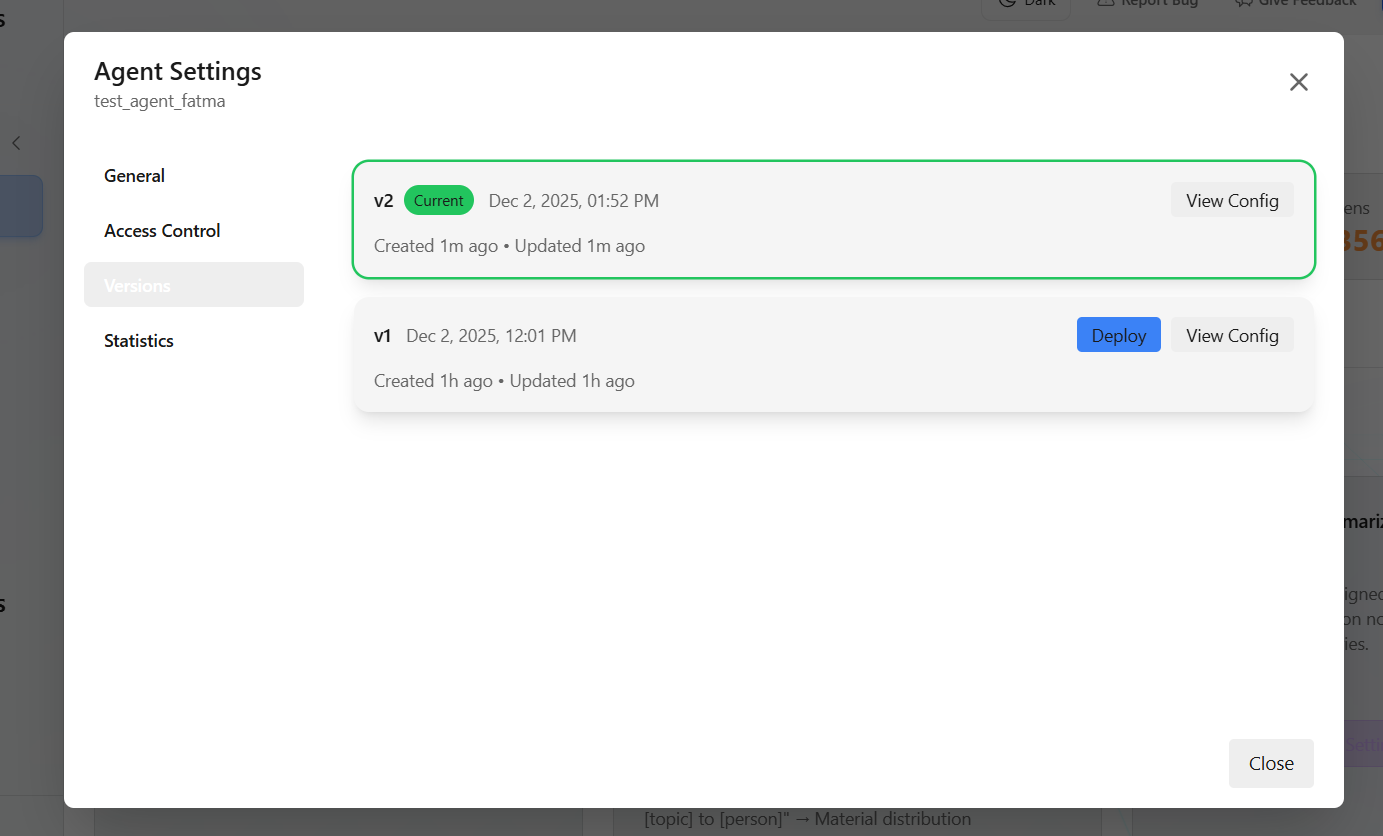
Every time you save changes to an agent, a new version is created. This gives you:- Version history: See all previous configurations
- Easy rollback: Revert to an older version if needed
- Safe experimentation: Test changes without losing the working version
Version States
Deploying a Version
Agent Settings
Click the Settings button on any agent to access detailed configuration. The Settings modal has four tabs:General
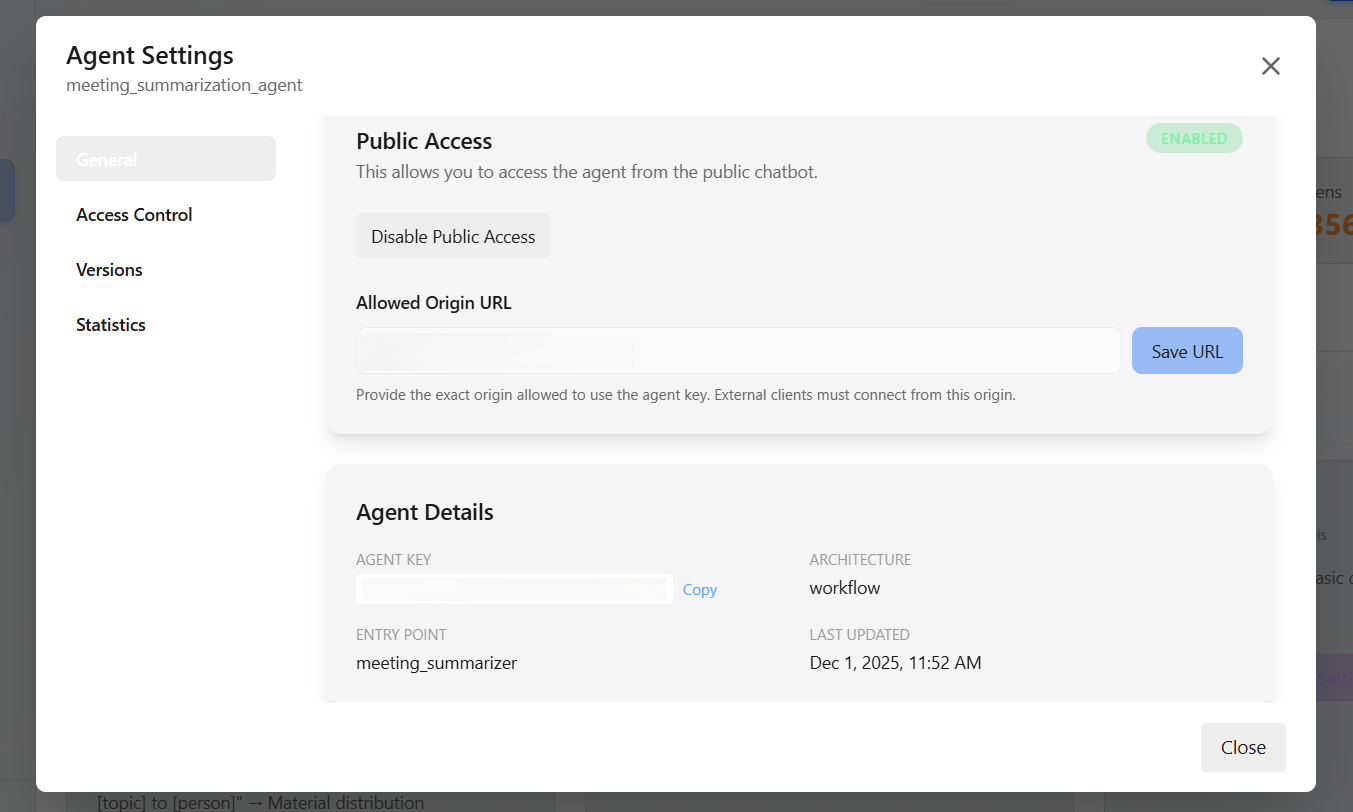
- Public Access: Enable WebSocket access for external clients
- Agent Key: Unique identifier for API/WebSocket connections
- Origin URL: Allowed domain for public access (CORS)
- Agent Details: View architecture, entry point, and last update time
When Public Access is enabled, you must specify an allowed origin URL for security.
Access Control

- When enabled, other users in your organization can view and use this agent in AMAS
- Only you (the owner) can modify settings
- When enabled, agent appears in the Atthene frontend interface
- Works alongside company sharing
Access Summary:
- AMAS: Shows your agents + shared company agents
- Atthene: Shows agents with “Show in Atthene” enabled
- Public Chatbot: Configured via Public Access in General tab
Versions
- View all versions: See complete version history
- Deploy button: Activate a specific version (makes it “Current”)
- View Config: Open version’s YAML in Playground
- Current badge: Shows which version is actively deployed
Statistics
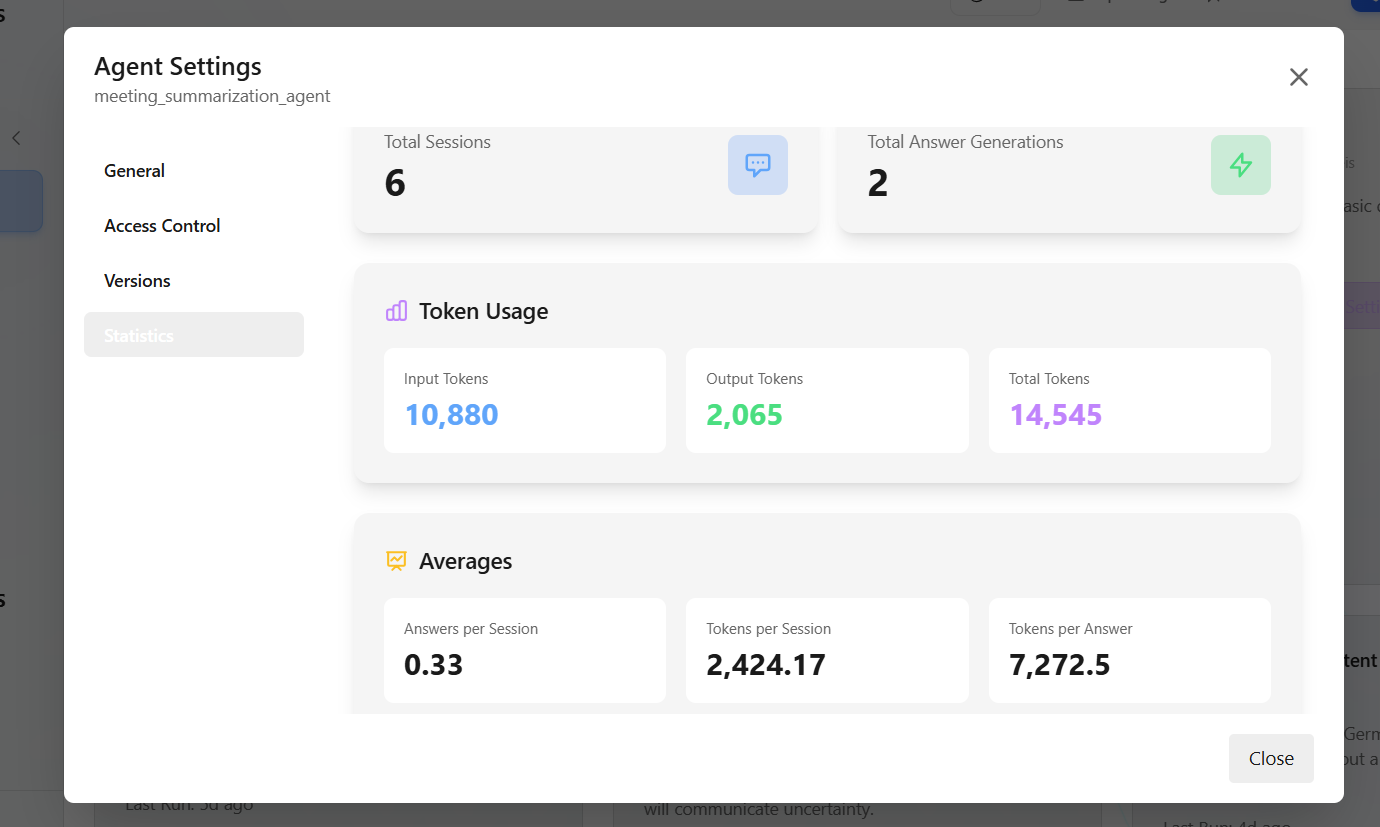
- Total Sessions
- Total Answer Generations
- Input Tokens
- Output Tokens
- Total Tokens
- Answers per Session
- Tokens per Session
- Tokens per Answer
Playground preview sessions are not included in these statistics.
Creating New Versions
When you edit a saved agent in the Playground:
The Playground shows a version dropdown when editing an agent. This lets you switch between versions to view their configurations.
Best Practices
Sharing Agents
To share an agent with your organization:- Click Settings on the agent card
- Go to Access Control tab
- Enable Share with Company
- Optionally enable Show in Atthene to make it visible in the Atthene interface
Shared agents are read-only for other users. Only the owner can modify settings or deploy versions.
Common Questions
Q: What happens to my API connections when I deploy a new version? A: They immediately start using the new version. No downtime, but behavior may change based on your config updates. Q: Can I restore a deleted agent? A: No. Deletion is permanent. Make sure you export the YAML configuration if you might need it later. Q: How many versions can I have? A: Unlimited. All versions are stored and accessible.What’s Next?
REST API Tutorial
Connect your agents to applications
Embedding Agents
Add agents to your website
YAML Configuration
Learn complete YAML syntax
Agent Types
Learn about agent architectures