

Tools give your agents the ability to perform actions beyond just responding with text. They can search the web, execute code, query databases, and more.Documentation Index
Fetch the complete documentation index at: https://docs.atthene.com/llms.txt
Use this file to discover all available pages before exploring further.
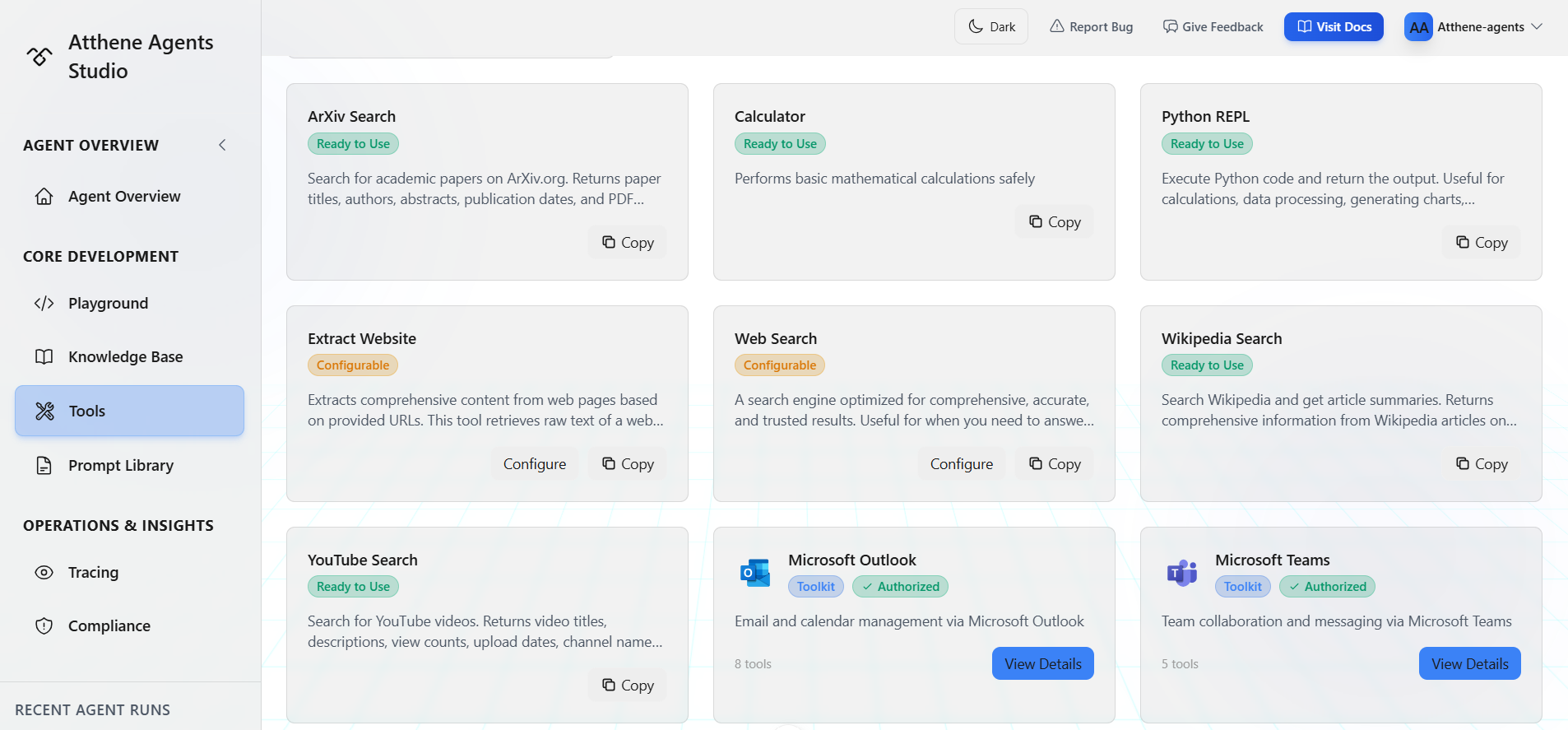
Tools Interface
The Tools page has two main tabs:All Tools Tab
Browse all available tools:- Basic Tools: Ready-to-use tools like web search, Wikipedia, calculator
- Toolkits: OAuth-based integrations like Microsoft Outlook and Teams
- Tool name and description
- Configuration status badge (Config Required, Configurable, or Ready to Use)
- Toolkit badge (for toolkit tools)
- Authorization status (for toolkits)
- Action buttons (Configure, Copy, Authenticate, or View Details)
My Tools Tab
Manage your custom tools and configured tool instancesAdding Tools to Your YAML
When you click the + button in the Playground, you’ll see a list of available tools: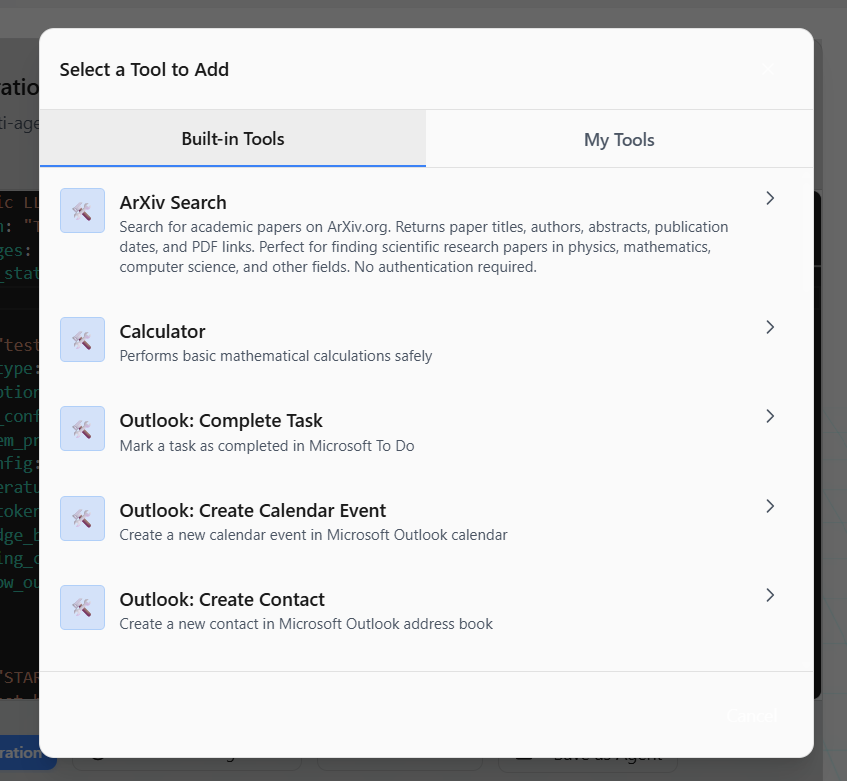
This is for quick YAML insertion in the Playground. Browse by toolkit or search for specific tools.
Using Tools in Agents
Once configured, add tools to your agent’s YAML:Only
react_agent type can use tools. Standard llm_agent cannot execute tools.Toolkits
Toolkits are collections of related tools that require OAuth authentication. For example, the Microsoft Outlook toolkit includes tools for reading emails, sending emails, and managing calendar events.Toolkits require OAuth authentication to connect external services like Microsoft Outlook or Teams.
Available Toolkits
Current toolkits:- Microsoft Outlook: Email and calendar management
- Microsoft Teams: Channel messages and collaboration
Authorizing a Toolkit
Before using toolkit tools in your agents, you need to authorize a connection: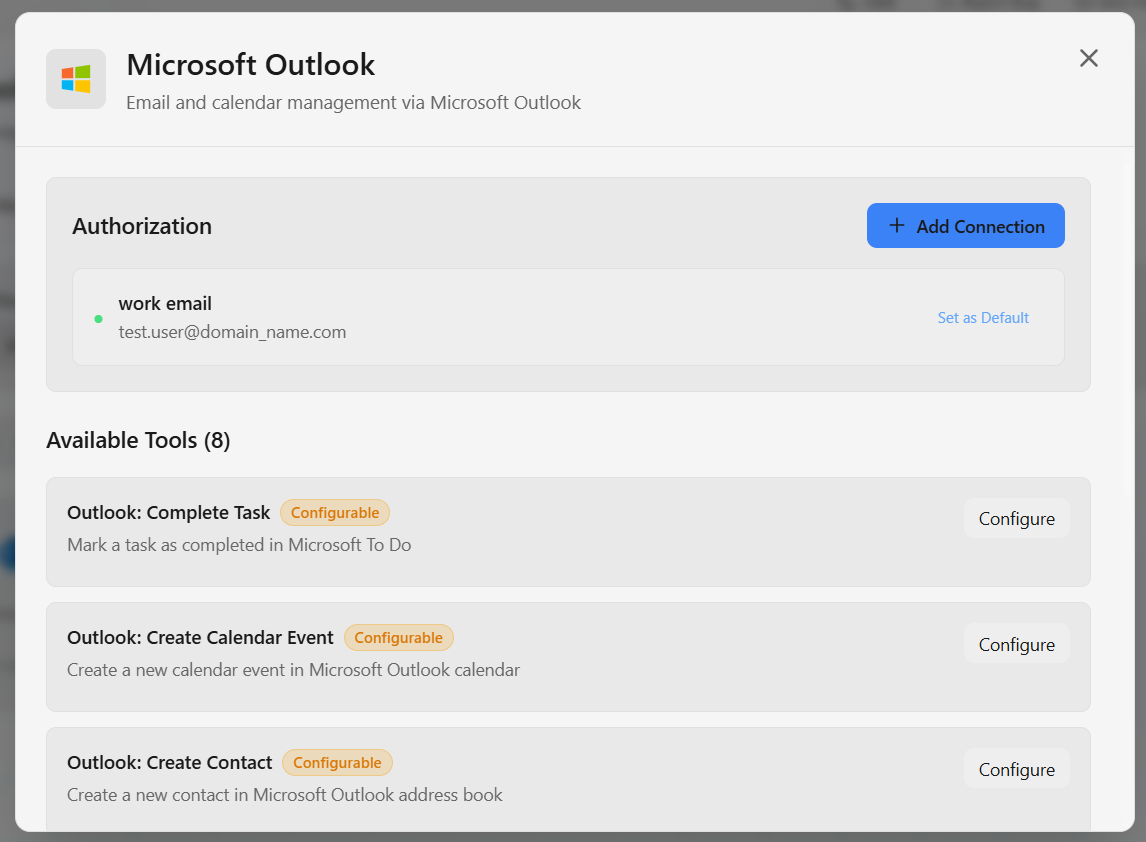
Authenticate
Follow the OAuth flow to grant permissionsYou’ll be redirected to Microsoft/Google to sign in
Connections use the default integration configured in Settings. You cannot choose a different integration during connection creation.
Using Toolkit Tools in Agents
Once you have a connection, you can use toolkit tools in your YAML:Specifying a Connection
By default, agents use the first available connection for a toolkit. To use a specific connection:If you don’t specify a connection, the agent uses the default connection for that toolkit. If no connection exists, the tool will fail.
Managing Connections
View Connections: Click on a toolkit to see all your connections Set Default: Make a connection the default for that toolkit Delete Connection: Remove a connection you no longer needAvailable Tools
Basic Tools
Tavily Search (tavily_search)
- Web search optimized for accurate, trusted results
- Real-time information with citations
- Configurable: max_results, timeout, include_answer, etc.
tavily_extract)
- Extract content from specific URLs
- Clean and parsed HTML content
- Configurable: format, timeout
google_search)
- Gemini-grounded Google Search with AI-synthesized answers and citations
- Configurable: model, temperature, max_output_tokens, timeout
wikipedia_search)
- Search Wikipedia articles
- No configuration needed
youtube_search)
- Search for YouTube videos
- Get video metadata and transcripts
arxiv_search)
- Search academic papers on Arxiv
- Research and scientific content
python_repl)
- Execute Python code in a sandboxed environment
- Mathematical calculations
- Access to: math, datetime, json, re, random modules
- No external libraries (no pandas, numpy, etc.)
calculator)
- Perform mathematical calculations
- Simple arithmetic and computations
randomizer)
- Generate random integers within a configurable range
- Configurable: min_value, max_value
memory)
- Save information to designated memory spaces for long-term retention
- Configurable: modules (list of memory module names to expose)
- Works with memory modules that have
auto_save: false
schedule_agent_task)
- Create scheduled tasks (cronjobs) for agents
- Supports one-time, daily, weekly, and monthly schedules
manage_agent_tasks)
- Query, update, enable/disable, or delete existing schedules
- Supports batch operations
list_agents)
- Discover agents available to the user
- Supports semantic search for large catalogs
search_knowledge_bases)
- Discover available knowledge sources (SharePoint, OneDrive, Google Drive, uploaded docs)
- Used before attaching KBs to agents via the agent builder
Microsoft Outlook Toolkit
Requires OAuth authorization via connection:- List Emails (
outlook_list_emails) - Get Email (
outlook_get_email) - Send Email (
outlook_send_email) - Reply to Email (
outlook_reply_email) - Forward Email (
outlook_forward_email) - List Calendar Events (
outlook_list_calendar_events) - Get Calendar Event (
outlook_get_calendar_event) - Create Calendar Event (
outlook_create_calendar_event) - List Tasks (
outlook_list_tasks) - Create Task (
outlook_create_task) - Complete Task (
outlook_complete_task) - List Contacts (
outlook_list_contacts) - Create Contact (
outlook_create_contact)
Microsoft Teams Toolkit
Requires OAuth authorization via connection:- Send Message (
teams_send_message) - Send Chat (
teams_send_chat) - List Messages (
teams_list_messages) - List Chats (
teams_list_chats) - List Teams (
teams_list_teams) - List Channels (
teams_list_channels) - Create Meeting (
teams_create_meeting) - Can create recurring events
Tool Configuration
Some tools allow you to configure parameters like timeout, max results, etc.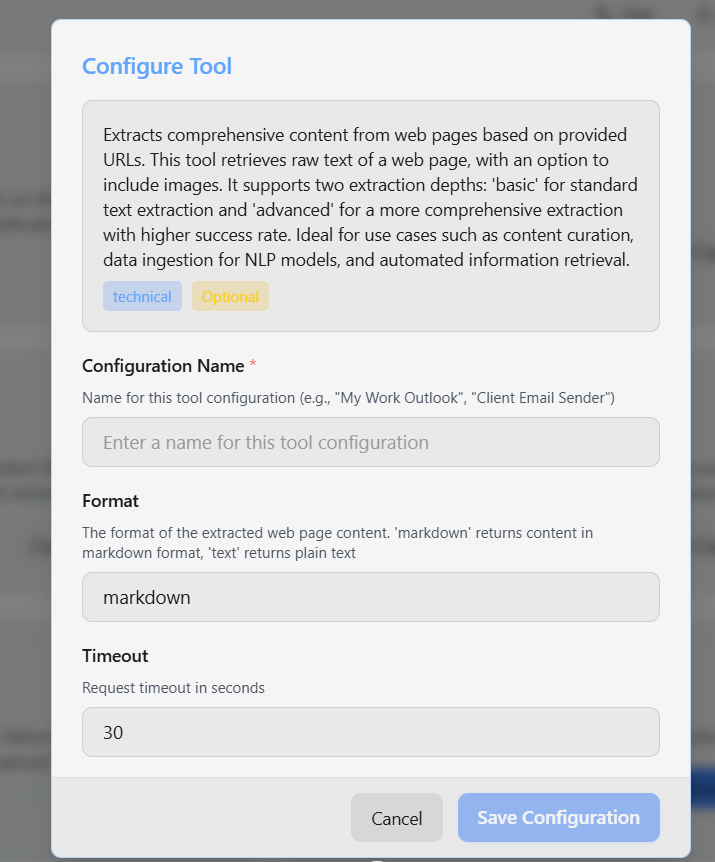
Configurable Tools
Tools like Tavily Search have optional configuration parameters:max_results: Number of search results to returntimeout: Request timeout in secondsinclude_answer: Include AI-generated answer- And more tool-specific options
Configuration parameters are set when you create a tool configuration instance. They’re not stored in your YAML, but referenced by the tool name.
Non-Configurable Tools
Tools like Wikipedia Search work out of the box with no configuration needed:Tool Security
Troubleshooting
Tool Usage Examples
Research Agent with Web Search
Mathematical Calculations with Python
Multi-Tool Agent
What’s Next?
Agent Types
ReAct agents and tool execution
Agent Capabilities
Complete guide to agent capabilities and tools
Custom Tools
Build your own tools for agents
Settings
Manage API keys and OAuth integrations