

The Settings page is where you manage API keys for accessing agents and configure OAuth integrations for toolkits.Documentation Index
Fetch the complete documentation index at: https://docs.atthene.com/llms.txt
Use this file to discover all available pages before exploring further.
Settings Sections
API Keys

Creating an API Key
API keys have full access to your account. Anyone with the key can execute agents, access knowledge bases, and manage configurations.
Using API Keys
Include the API key in your requests:Managing Keys
- Rotate regularly: Create new keys and delete old ones every few months
- Monitor usage: Check API key usage in the dashboard
- Revoke immediately: If a key is compromised, delete it right away
You can only have one valid API key at a time. Creating a new key will invalidate the previous one.
Integrations
Manage OAuth integrations for toolkits (Microsoft Outlook, Teams, etc.).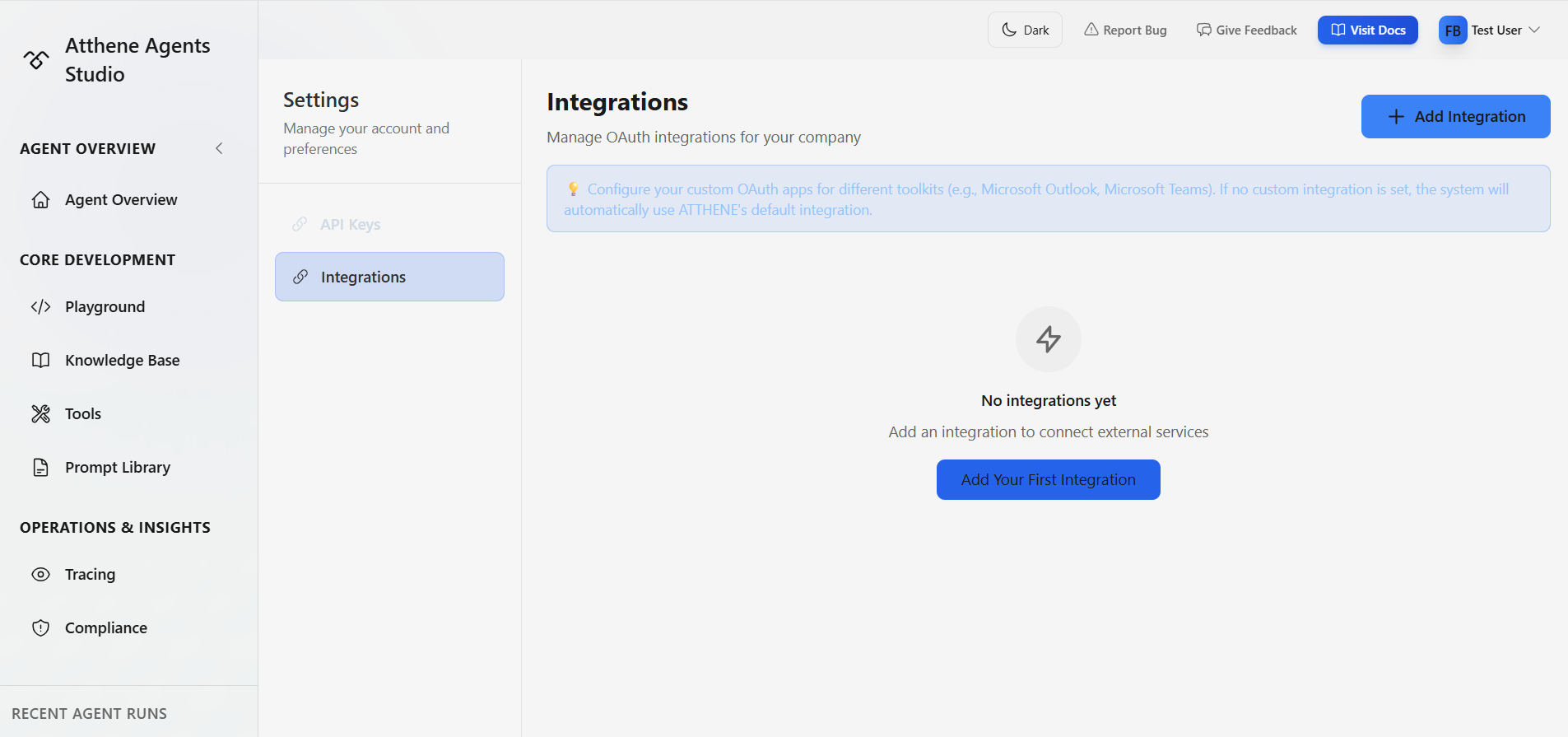
How Integrations Work
Integrations control how users authenticate with external services (like Microsoft Outlook or Teams) when using toolkits. ATTHENE’s Default Integration: If you don’t configure a custom integration, ATTHENE provides a pre-configured OAuth app that works immediately. When users authorize a toolkit connection, they’ll use ATTHENE’s app by default. Custom Integration: You can add your own OAuth app credentials (Client ID & Secret) from your Azure portal. When users authorize connections, they can choose to use your custom integration instead. This gives your organization full control over OAuth permissions and policies. Setting a Default: If you create multiple custom integrations, you can mark one as “default.” This integration will be pre-selected (but not required) when users authorize new connections.For now, we only support Microsoft as a provider. Support for Google, Slack, and other providers coming soon.
Adding a Custom Integration
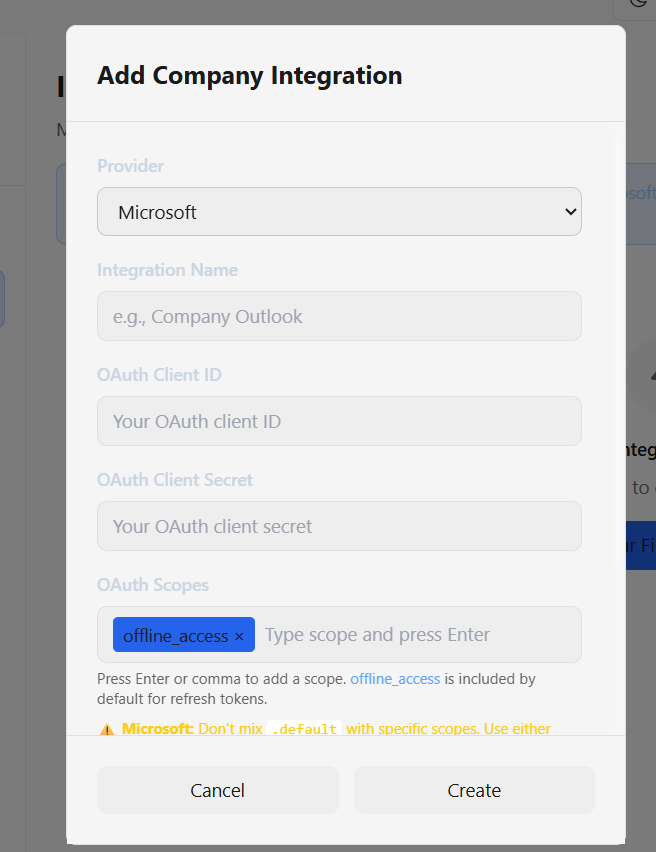
Enter OAuth Credentials
Provide:
- Integration Name: e.g., “Company Outlook”
- OAuth Client ID: From your Azure app
- OAuth Client Secret: From your Azure app
- OAuth Scopes: Required permissions (e.g.,
Mail.Read,Mail.Send)
Setting a Default Integration
If you have multiple custom integrations for the same provider:- Find the integration in the list
- Click Set as Default
- This integration will be used by default for all new connections
When to Use Custom Integrations
- Organization policies: Your company requires using internal OAuth apps
- Custom permissions: You need specific Microsoft Graph scopes
- Compliance: Data must stay within your Azure tenant
Integrations configured here are used when creating toolkit connections in the Tools page. See Tools - Toolkits for how users authorize connections.
Security Best Practices
Common Tasks
Revoking an API Key
- Go to Settings → API Keys
- Find the key to revoke
- Click the trash icon
- Confirm deletion
Troubleshooting
What’s Next?
REST API Tutorial
Learn how to use your API keys
Custom Tools
Build tools that use your integrations
Tools
Configure tools for your agents