

The Knowledge Base section is where you upload documents, create collections, and build retrieval systems that your agents can query. Give your agents access to your company’s data, documentation, and knowledge.Documentation Index
Fetch the complete documentation index at: https://docs.atthene.com/llms.txt
Use this file to discover all available pages before exploring further.
Two Main Sections
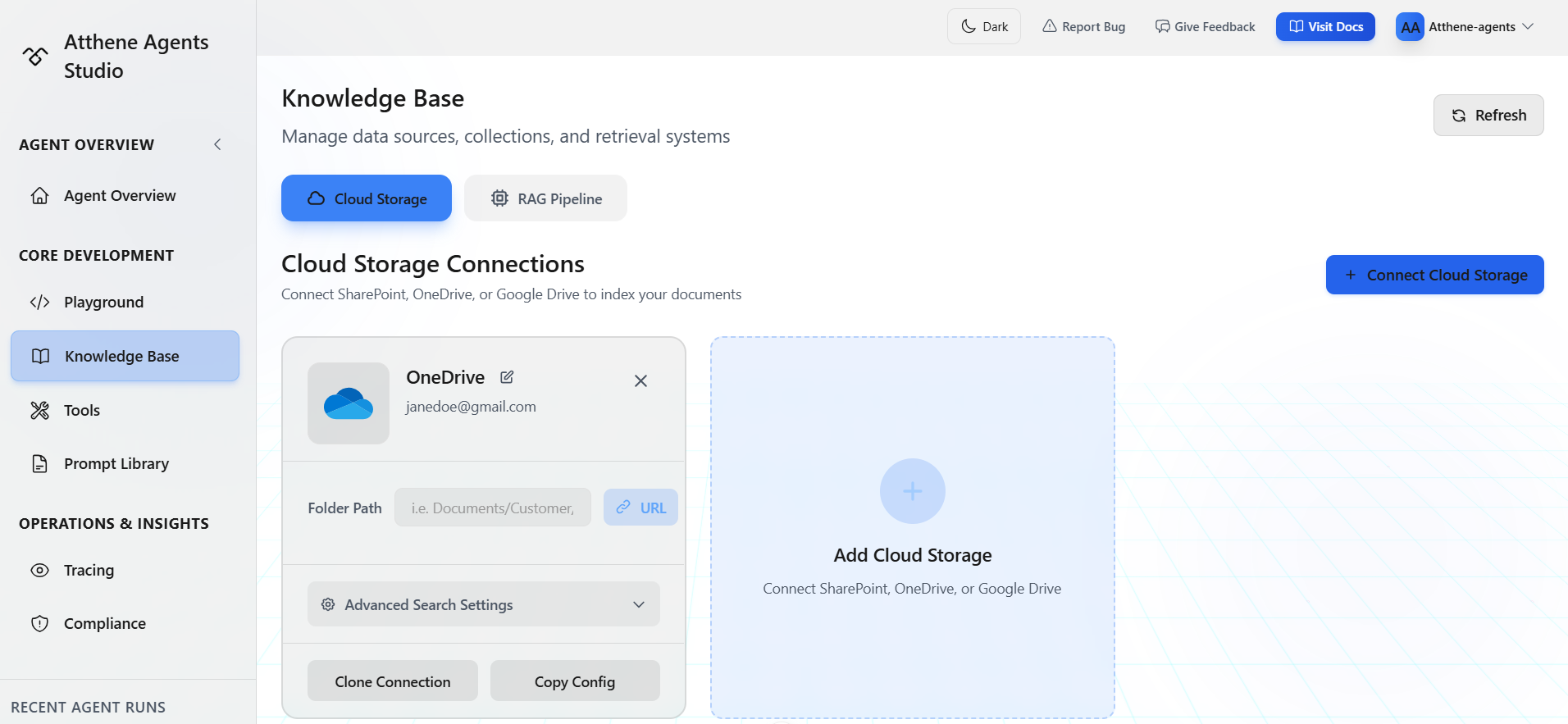
Cloud Storage
Connect external storage providers to automatically sync and index documents:- SharePoint
- OneDrive
- Google Drive
RAG Pipeline
Build the retrieval system in 4 steps:- Data Sources - Upload files or connect to storage
- Collections - Organize data into collections
- Knowledge Bases - Configure retrieval settings
- Retrieval Methods - Set up how agents search your data
Connecting Cloud Storage
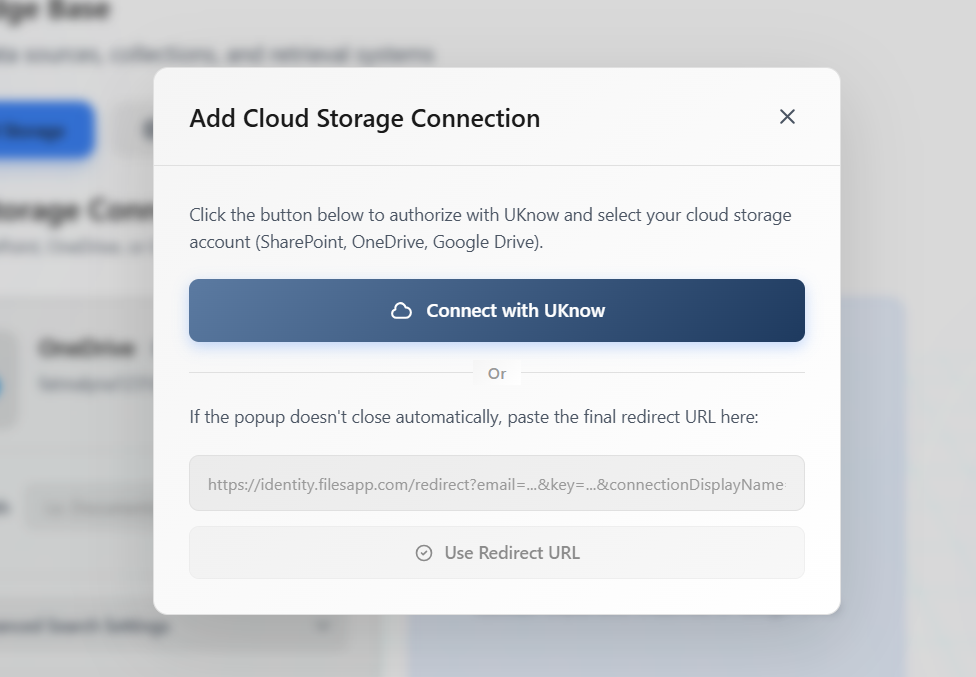

Files are automatically synced and indexed. Updates to documents are reflected in your knowledge bases.
Building a RAG Pipeline
Step 1: Data Sources
Upload files or connect to storage:- Upload Files: PDF, DOCX, TXT, Markdown, CSV, Excel
- Cloud Storage: Connect SharePoint, OneDrive, or Google Drive (see Cloud Storage section above)
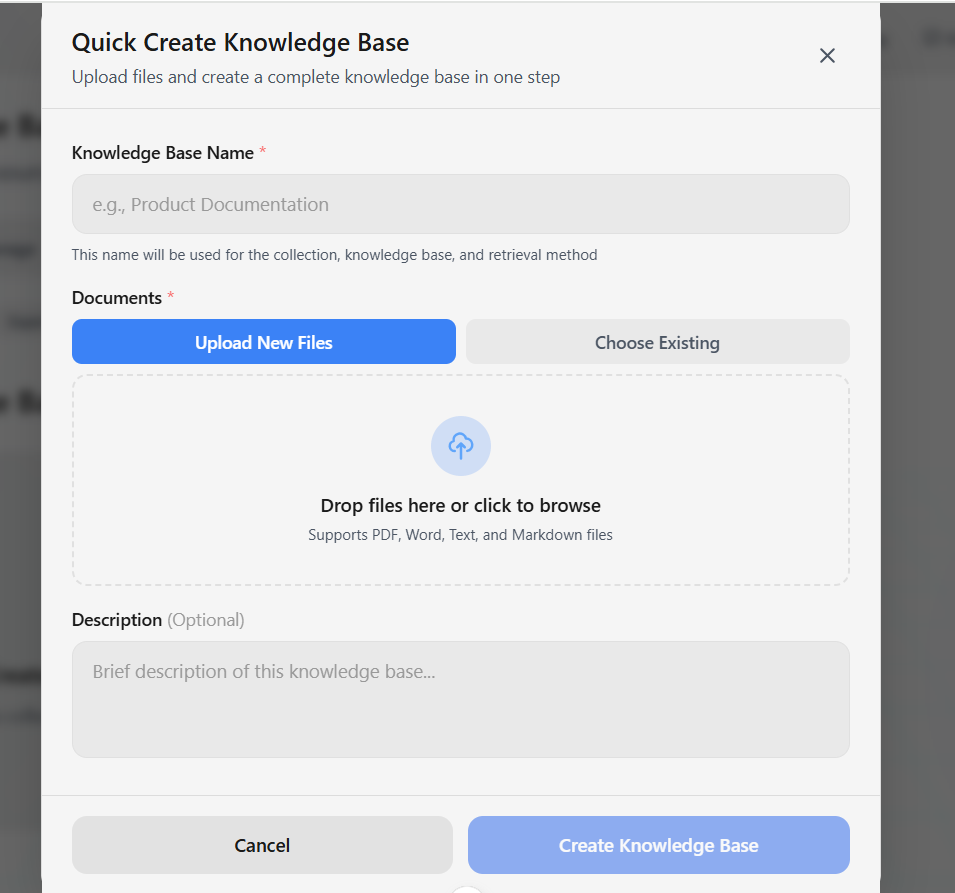
- Documents: PDF, DOC, DOCX, TXT, MD (Markdown), LOG
- Structured Data: CSV, XLSX, XLS (Excel)
Step 2: Collections
Group related data sources:- Create collections by topic or project
- Add multiple data sources to a collection
- Configure chunking and embedding settings per knowledge base
- Collections are reusable groups of data sources
- Use collections to organize data by topic, project, or department
- One data source can belong to multiple collections
Step 3: Knowledge Bases
Configure processing and retrieval for your data:- Name your knowledge base
- Select collections and/or individual data sources
- Configure chunking strategy and embedding model
- Set up retrieval parameters
Chunking Strategies
Control how documents are split: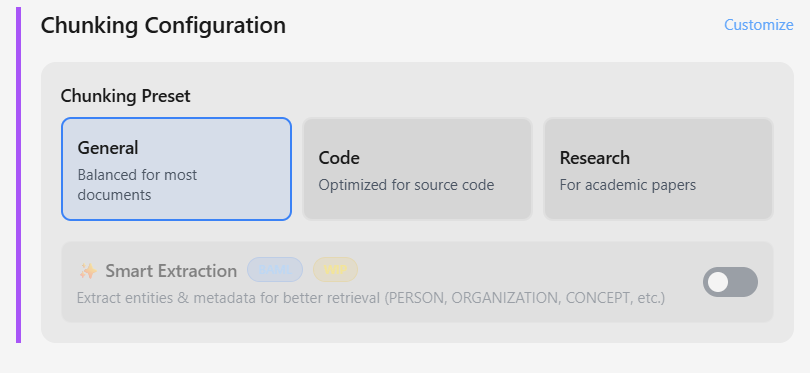
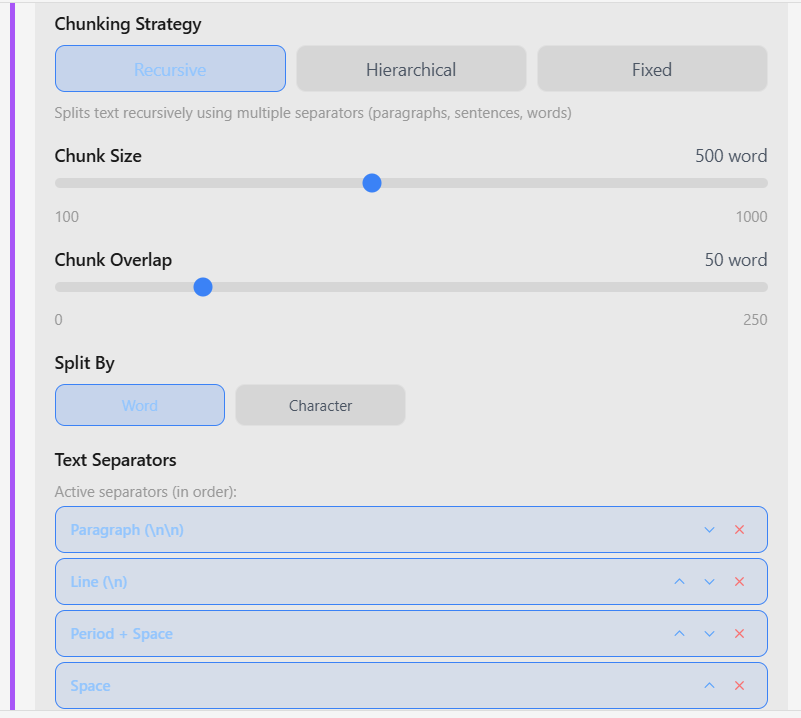
- Recursive (default): Splits by paragraphs → sentences → words
- Hierarchical: Multi-level chunks preserving structure
- Fixed: Simple fixed-size chunks
- Chunk size: 100-1000 words/characters (default: 500)
- Chunk overlap: Overlap between chunks (default: 50)
- Split by: word or character (recursive only; hierarchical and fixed support word only)
AI-powered entity extraction is currently in development. When released, it will automatically extract entities (PERSON, ORGANIZATION, CONCEPT, etc.) and metadata for enhanced retrieval accuracy.
Structured Data Processing
For CSV and Excel files: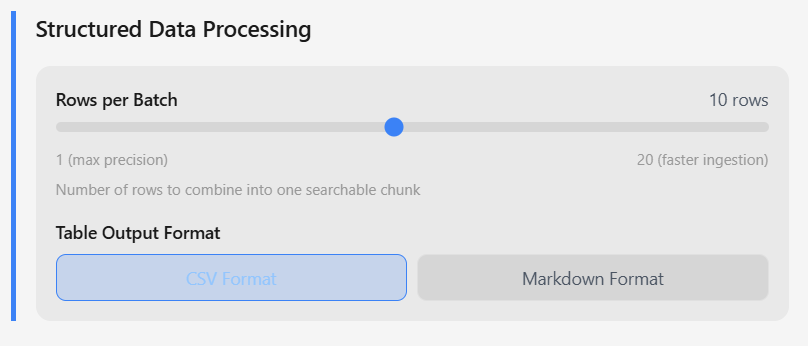
- Rows per batch: Combine 1-20 rows per searchable chunk
- Table format: CSV or Markdown output
- CSV content column: Specify which column contains text
- Processing mode: Row-level (one doc per row) or file-level
Embedding Configuration
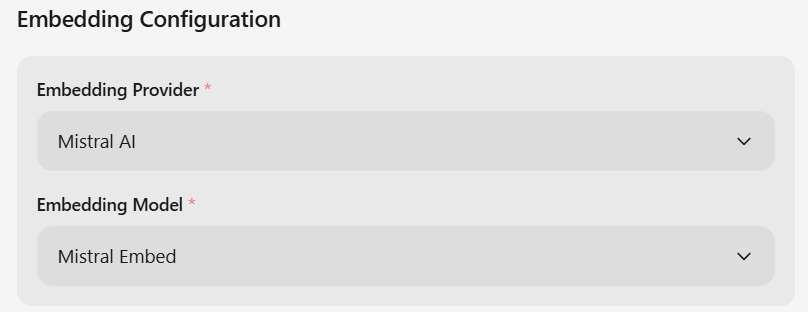
- Azure OpenAI: text-embedding-ada-002 (1536 dimensions)
- Mistral AI: mistral-embed (1024 dimensions)
- Telekom OTC: BGE-M3, Jina v2 Base (DE/Code), TSI ColQwen2
- Top K: Number of results to return (default: 10)
- Search EF: HNSW search accuracy parameter (default: 64)
- Metric Type: Distance metric - COSINE (recommended), L2, or IP
- Score threshold: Minimum relevance score (0.0 - 1.0, optional)
- Offset: Skip N results for pagination (optional)
Step 4: Retrieval Methods
Set up how agents query your data:- Similarity search: Vector-based semantic search
- Keyword search: Traditional keyword matching
- Hybrid search: Combine vector + keyword for best results
Using Knowledge Bases in Agents
Once created, add knowledge bases to your agents:Basic Configuration
Advanced Configuration
- dense: Vector-based semantic search only (default, fastest)
- hybrid: Combines dense vector + BM25 keyword search
- bm25: Keyword-based search only
- hybrid_rrf: Hybrid with Reciprocal Rank Fusion for better result ranking
Managing Your Data
Updating Documents
Cloud storage: Files auto-sync when changed Manual uploads:- Go to Data Sources
- Click the data source
- Upload new version or delete old files
Deleting Data
Delete a data source: Removes from all collections Delete a collection: Knowledge bases using it will stop working Delete a knowledge base: Agents using it will failBest Practices
Common Issues
What’s Next?
Knowledge Base Setup
YAML configuration and advanced retrieval options
Playground
Add knowledge bases to agents
Milvus
Vector database details
Uknow Cloud Storage
Cloud storage integration